 Ifscape
How to get a liquid glass photo effect on iPhone
A liquid glass photo effect is a piece of clear, curved-looking glass inside a picture: the scene behind it bends a little, the edges catch the light, and you can still see everything through it. Most tutorials build this on a computer in Photoshop, Figma, Canva or CSS. On iPhone there is a quicker route: put a refractive glass object over the live camera view and capture the scene and the glass together in one photo.
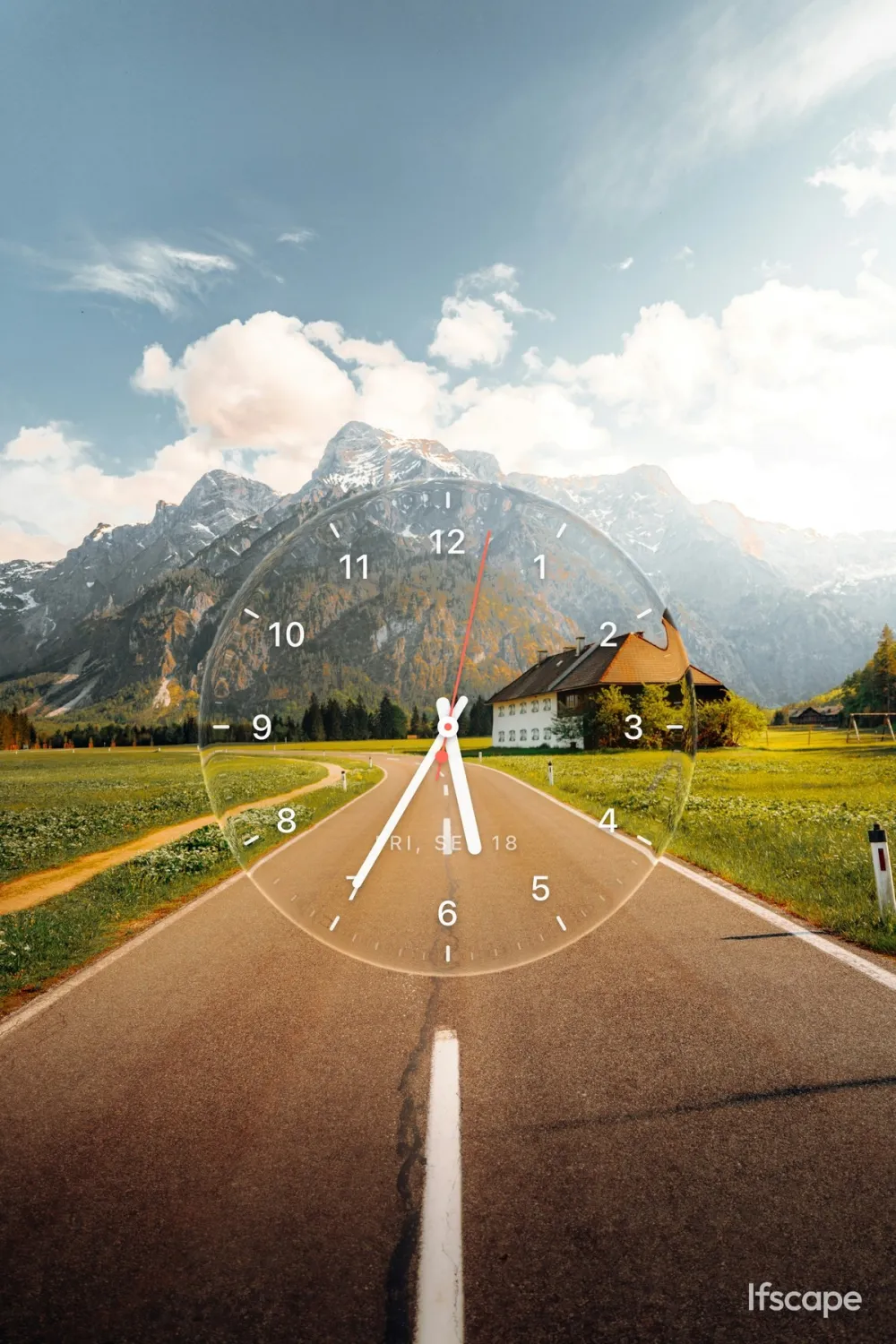
What makes a photo look like liquid glass
The look comes from a few things that real glass does to light. When any of them is missing, the result reads as a flat transparent sticker instead of glass.
- Refraction. Lines and shapes behind the glass shift and bend, most strongly near the curved edges.
- Edge highlights. A thin bright rim where the surface turns toward the light.
- Transparency. The background stays readable through the glass. It is not covered.
- Softness. Depending on the glass, the scene behind it can look slightly frosted or soft.
Three ways to get the effect
1. With real glass
Hold a glass, a crystal ball, a vase or a window between the lens and the scene. This gives true refraction and reflections for free. The catch is that you need the object with you, you need to keep it clean, and you cannot choose its shape. Watch out for strong sun through a crystal ball: it focuses light and can burn surfaces.
2. In a desktop editor
Photoshop, Figma, Canva and CSS tutorials all build the same pieces by hand: a shape, a blur or frosted layer behind it, a distortion or displacement for refraction, and highlight strokes on the edges. This is the most flexible route and the right one for interface mockups or a custom logo in glass. It happens after the shot, on a computer, and it takes a few layers to look convincing.
3. In the camera on iPhone
A glass-object camera renders the refraction live on the camera view, so you frame the scene and the glass at the same time and there is nothing to edit afterwards. This is what Ifscape does. The trade-off: you choose from the app’s glass objects instead of drawing your own shape.
Step by step on iPhone with Ifscape
- Open the camera or import a photo. Point Ifscape at a street, a landscape or a table. To use a picture you already took, import it from your library.
- Pick a glass object. Swipe the style bar at the bottom. Clock, Colors, Text, Ink and Vinyl are free; Sticker, Flute, Water and Print can be tried live, and saving them needs Ifscape Plus.
- Place it. Drag, pinch and rotate the object on the live view until it sits where you want it in front of the scene.
- Frame the shot. Use the zoom control to set the framing. What you see in the viewfinder is what you save.
- Tap the shutter. Ifscape saves one ordinary photo that contains both the scenery and the glass.
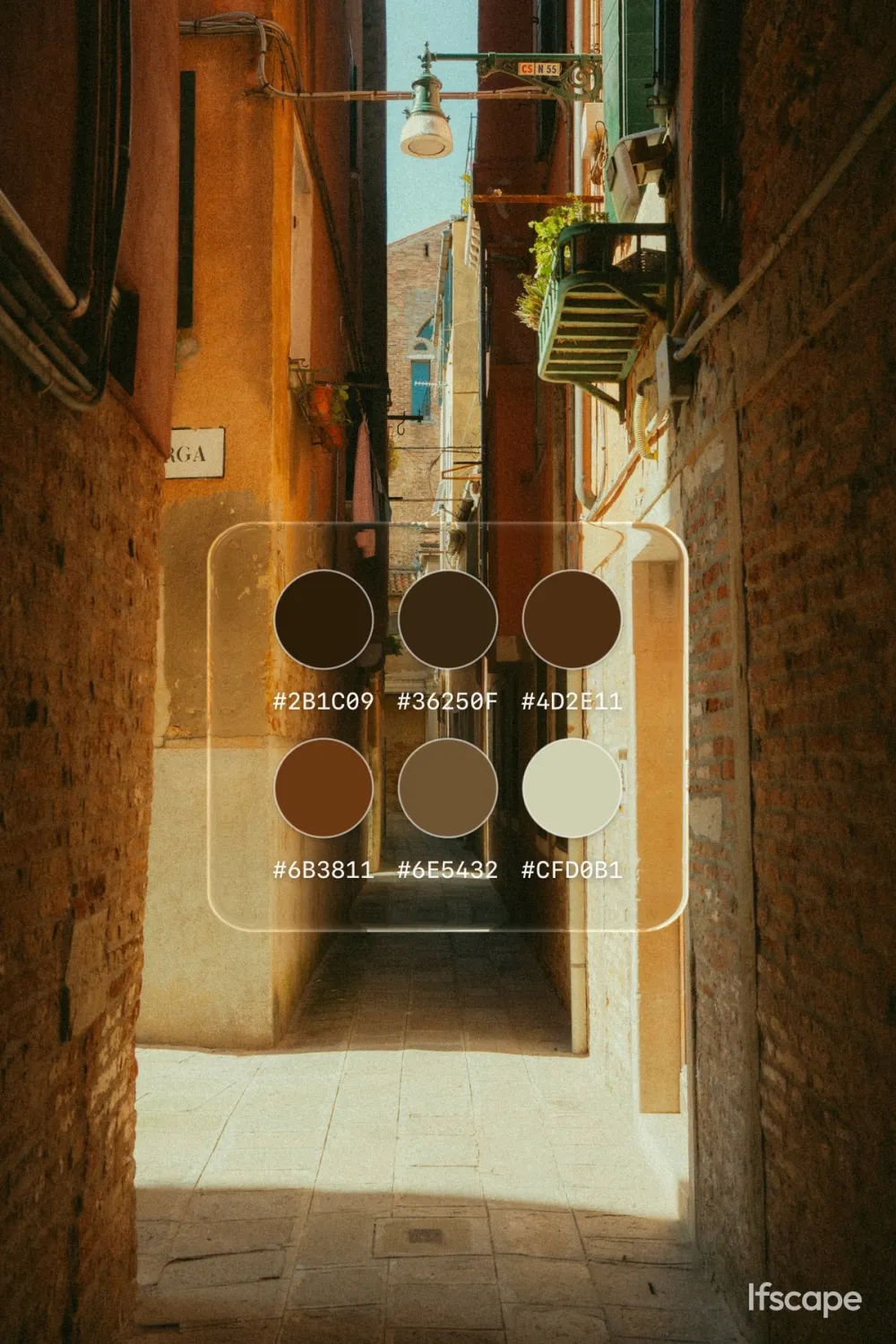
Which glass object gives which look
| Object | Look in the photo | Good for | Plan |
|---|---|---|---|
| Clock | A transparent analog clock disc with the scene showing through. | Landscapes, skylines, “the time we were here”. | Free |
| Colors | A glass palette card of the colors in front of you. | Sunsets, streets, outfits. | Free |
| Text | A word in glass. | A city, a name, a mood. | Free |
| Ink | Ink floating on the glass, inspired by suminagashi marbling. | Lakes, sky, calm scenes. | Free |
| Vinyl | A glass card of the track playing in Apple Music. | The song of a trip or an evening. | Free |
| Flute | Fluted (reeded) glass over the frame with clear windows. See the fluted glass photo effect guide. | Interiors, cafés, portraits. | Plus to save |
| Water | A film of water over the whole scene. | Window views, night lights. | Plus to save |
| A printed acetate: spot color outside the window, the live scene inside. | Graphic, poster-like shots. | Plus to save | |
| Sticker | A small decoration on the scene. | Playful street shots. | Plus to save |
| Style | A round glass window that restyles the person inside it, for example as an illustration. | Portraits. | Plus |
| Words | Glass word labels on the things in the photo, with a translation and pronunciation. | Learning words on the go. | Plus |
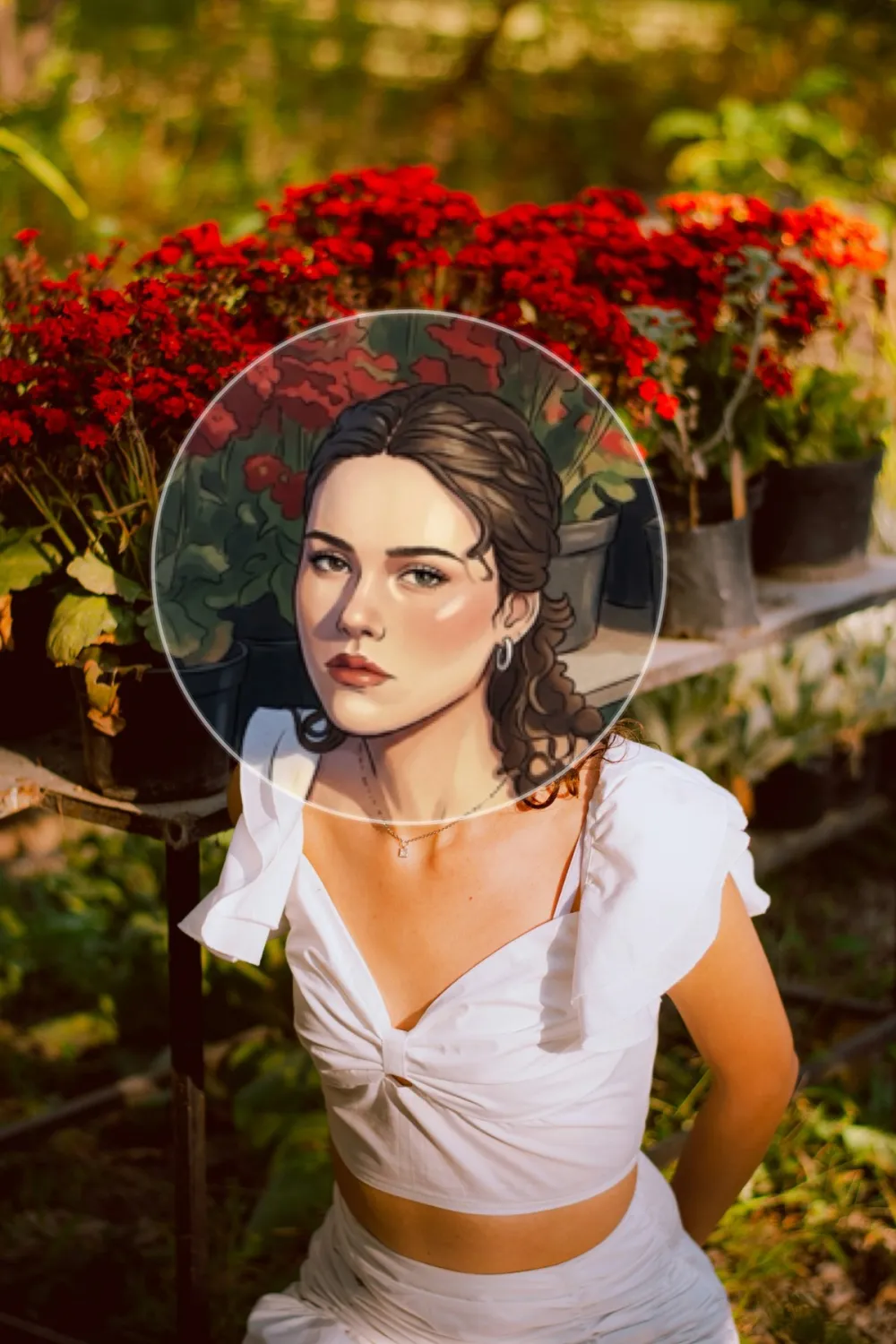
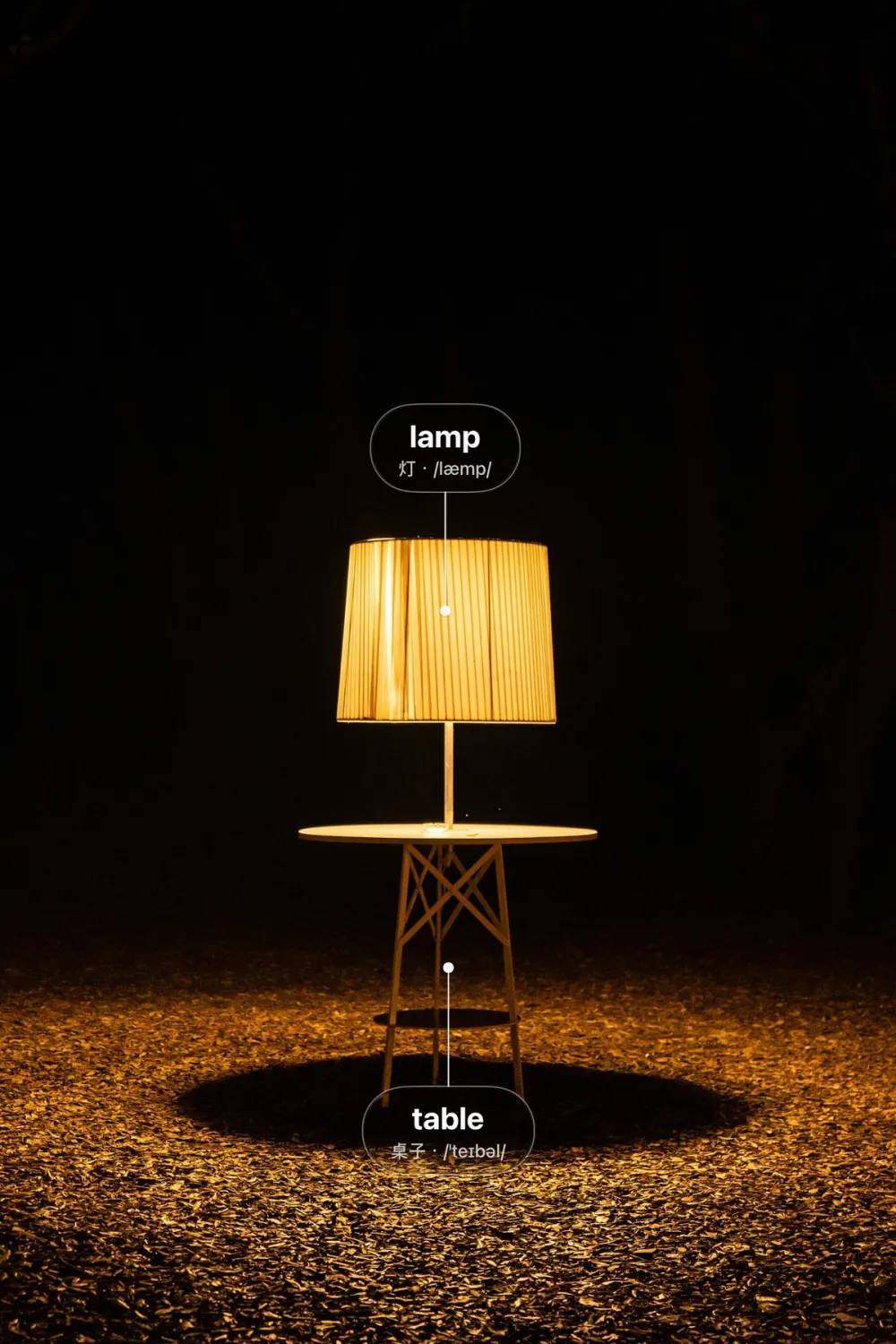
The free objects are a good place to start: a glass clock or a palette card over a detailed background shows the refraction clearly.
Tips for a convincing glass look
- Give the glass something to bend. Refraction is easiest to see over lines and texture: railings, windows, leaves, tiles, city lights. Over a plain sky the glass reads as a soft shape.
- Keep the main subject clear. Place the glass beside the subject or over the background, not over a face or the one detail you care about.
- Use contrast. A bright scene behind a glass object, or lights at night, makes the edges stand out.
- Leave space around it. A glass object needs a little empty scene around it to look like it is standing there.
- One object per photo. One clear piece of glass usually reads better than several competing ones.
What this approach cannot do
- It does not make a custom shape or logo out of glass. Use a desktop editor for that.
- It does not change your iPhone’s system interface. That is the iOS 26 Liquid Glass design, a different thing.
- It is not AR: the glass is placed on the camera view, not anchored to a surface in the room.
- It saves still photos, not video.
Ifscape runs on iPhone with iOS 17 or later. For the different meanings of the term, see what is a liquid glass camera.
Liquid glass photo questions
Can I add a liquid glass effect to a photo on iPhone without Photoshop?
Yes. Instead of building the glass in a desktop editor, you can place a refractive glass object over the camera view and capture it with the scene. In Ifscape you can also import a photo from your library and place the glass over it.
Is this the same as the iOS 26 Liquid Glass interface?
No. iOS 26 Liquid Glass is how Apple’s buttons, menus and panels look. A liquid glass photo effect means glass that appears inside the picture. Ifscape runs on iOS 17 or later and does not change your system interface.
Is the liquid glass effect free?
In Ifscape, the Clock, Colors, Text, Ink and Vinyl objects can be captured for free. Sticker, Flute, Water and Print can be tried live in the viewfinder; saving them needs Ifscape Plus. Current prices are shown on the App Store.
Can I put my own shape or logo in glass?
Not in Ifscape. You choose from its glass objects. For a custom glass shape, a desktop editor such as Photoshop or Figma is the better tool.